Set Up Codex
This guide connects OpenAI's Codex CLI to TokHive, so Codex runs on TokHive's models and draws on your TokHive balance. It takes about five minutes.
You need: a TokHive account with a balance above zero (see Deposits), and a terminal on macOS, Linux or Windows.
1. Install Codex
Skip this step if codex --version already works.
- macOS / Linux
- Windows (PowerShell)
npm install -g @openai/codex # or: brew install --cask codex
npm install -g @openai/codex
You don't need to sign in to Codex with a ChatGPT account to use TokHive.
2. Create an API key
In the console, open API Keys and click Create key. Give it a name you will recognize, such as the machine it runs on, and click Create.
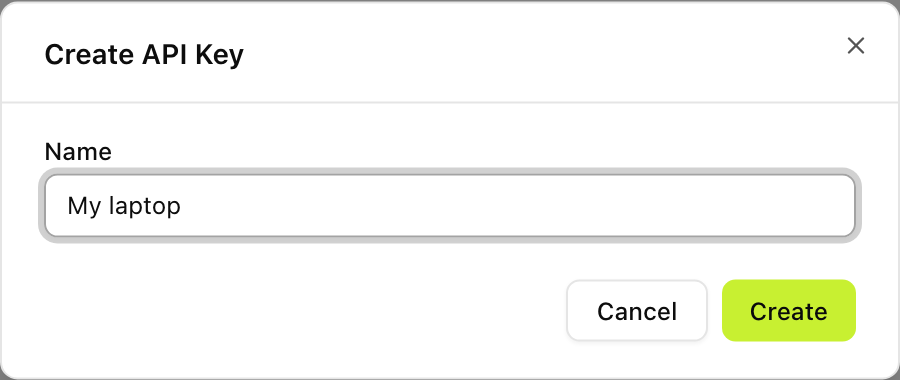
The key starts with hive_ and is shown only once. Keep the dialog open: it shows the setup for Codex with your key and an offered model already filled in.
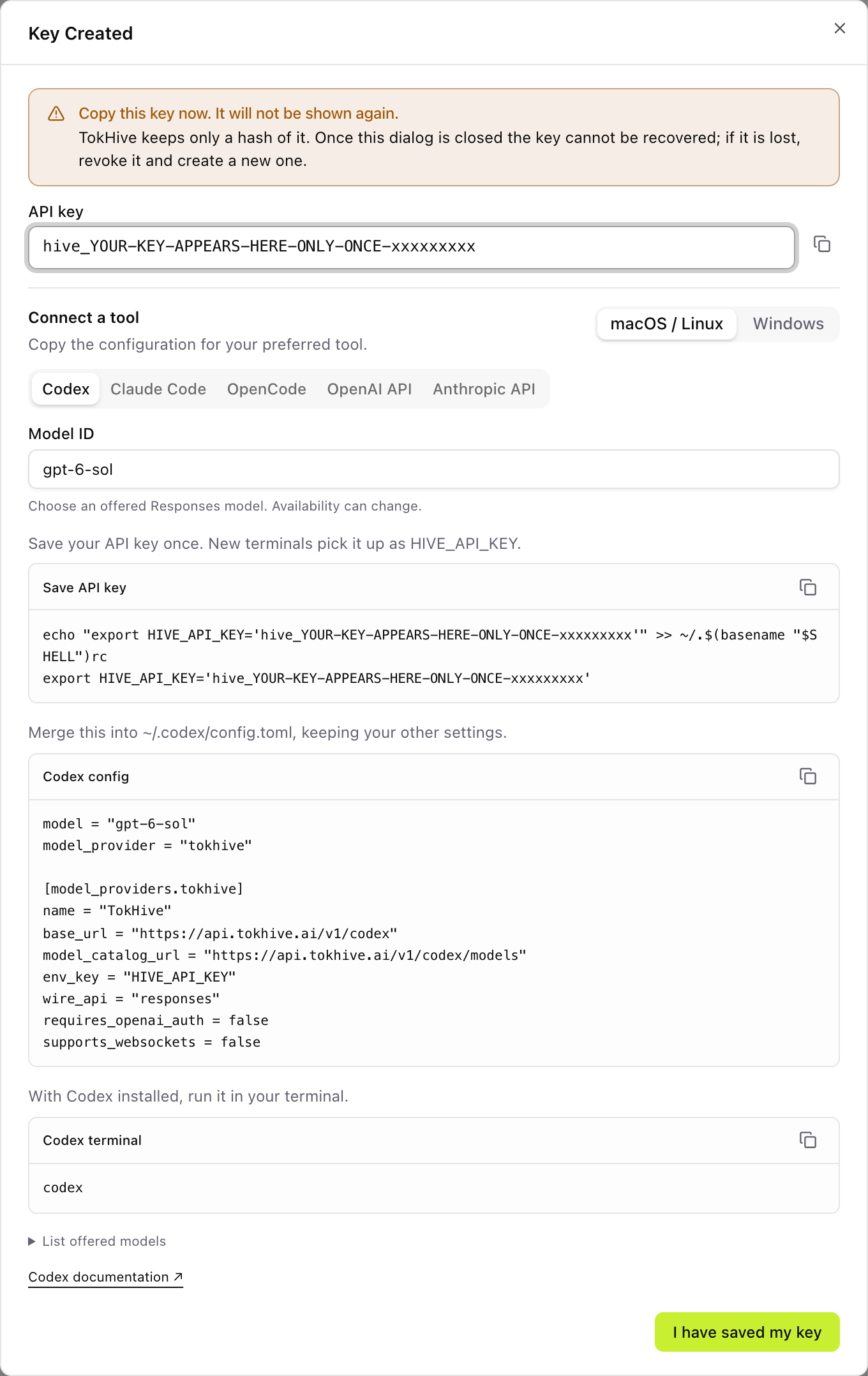
Pick your operating system at the top right, keep the Codex tab, and choose a model under Model ID. The steps below match what the dialog shows.
3. Save the key
Codex reads the key from the HIVE_API_KEY environment variable. Save it once so every new terminal has it:
- macOS / Linux
- Windows (PowerShell)
echo "export HIVE_API_KEY='hive_xxxxxxxxxxxxxxxxxxxxxxxxxxxx'" >> ~/.$(basename "$SHELL")rc
export HIVE_API_KEY='hive_xxxxxxxxxxxxxxxxxxxxxxxxxxxx'
The first line adds the key to ~/.zshrc or ~/.bashrc; the second sets it in the terminal you are using now.
[Environment]::SetEnvironmentVariable("HIVE_API_KEY", 'hive_xxxxxxxxxxxxxxxxxxxxxxxxxxxx', "User")
$env:HIVE_API_KEY = 'hive_xxxxxxxxxxxxxxxxxxxxxxxxxxxx'
The first line saves the key for your Windows user; the second sets it in the PowerShell window you are using now.
Use the Save API key block from the dialog, which already contains your key.
4. Add TokHive to the Codex config
Open the Codex config file, creating it if it doesn't exist:
- macOS / Linux
- Windows (PowerShell)
~/.codex/config.toml
%USERPROFILE%\.codex\config.toml
Add the Codex config block from the dialog. If the file already has settings, keep them and add these lines; if it already sets model or model_provider, replace those two.
model = "gpt-6-sol"
model_provider = "tokhive"

[model_providers.tokhive]
name = "TokHive"
base_url = "https://api.tokhive.ai/v1/codex"
model_catalog_url = "https://api.tokhive.ai/v1/codex/models"
env_key = "HIVE_API_KEY"
wire_api = "responses"
requires_openai_auth = false
supports_websockets = false
What the settings do:
base_urlpoints Codex at TokHive's Codex endpoint, which passes Codex's requests through unchanged, so new Codex versions keep working.model_catalog_urllets Codex's/modelpicker list the models TokHive offers right now.env_keytells Codex to send the key fromHIVE_API_KEY.requires_openai_auth = falsestops Codex from asking you to sign in to OpenAI.
5. Check that it works
Run a one-off request:
codex exec "Reply with exactly OK."
Codex should answer OK. Then open the console's Call Records page: the call is listed with its model, tokens and cost.
From now on, start Codex as usual with codex. Inside Codex, /model switches between the models TokHive offers.
To choose per session between TokHive and your own ChatGPT login, put TokHive in a profile instead of setting the top-level model and model_provider:
[profiles.tokhive]
model = "gpt-6-sol"
model_provider = "tokhive"
Keep the [model_providers.tokhive] block as above, and start Codex with codex --profile tokhive when you want TokHive.
Troubleshooting
| What you see | What to do |
|---|---|
401 or invalid_api_key | The terminal doesn't have the key. Open a new terminal after step 3, or check echo $HIVE_API_KEY (macOS / Linux) or $env:HIVE_API_KEY (Windows). If the key was revoked, create a new one. |
402 or insufficient_balance | Your balance is 0 or below. Add funds. |
model_not_found | The model in config.toml isn't offered. Pick one from /model in Codex or from the price list. |
503 or no_supply | No account can serve that model right now. Retry shortly, or switch to another model. |
| Codex asks you to sign in | Check that requires_openai_auth = false is in the [model_providers.tokhive] block and that model_provider = "tokhive" is set. |
For every error code, see Errors.
Switching Codex between TokHive and another provider often? CC Switch does it with one click.